

In the Account section, you will now find a new option called ‘Function Protection’, which allows you to easily lock certain functions in your Genius mobile pay using a PIN code. You can configure this setting either for an individual terminal or for all terminals at your location.
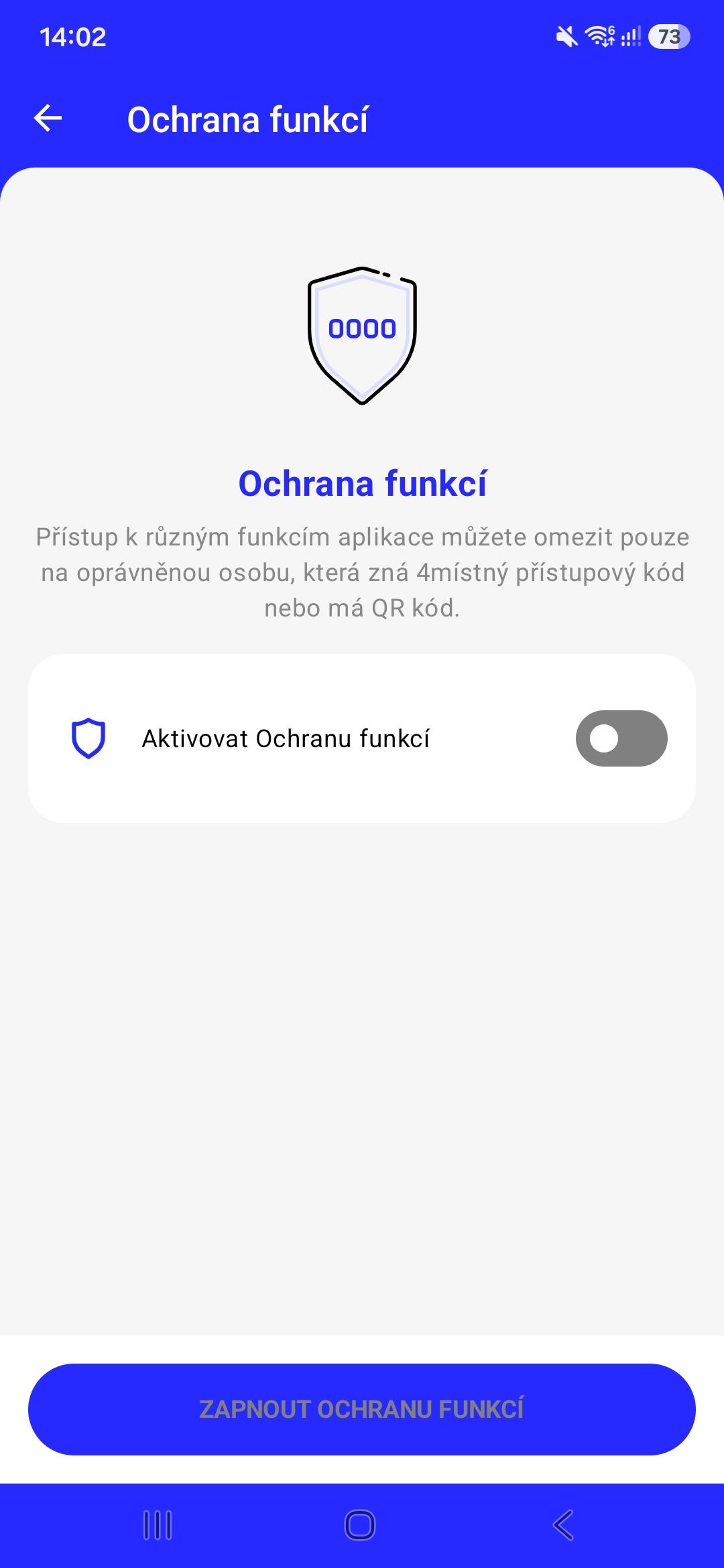
You can easily turn the security features on or off directly within the app.
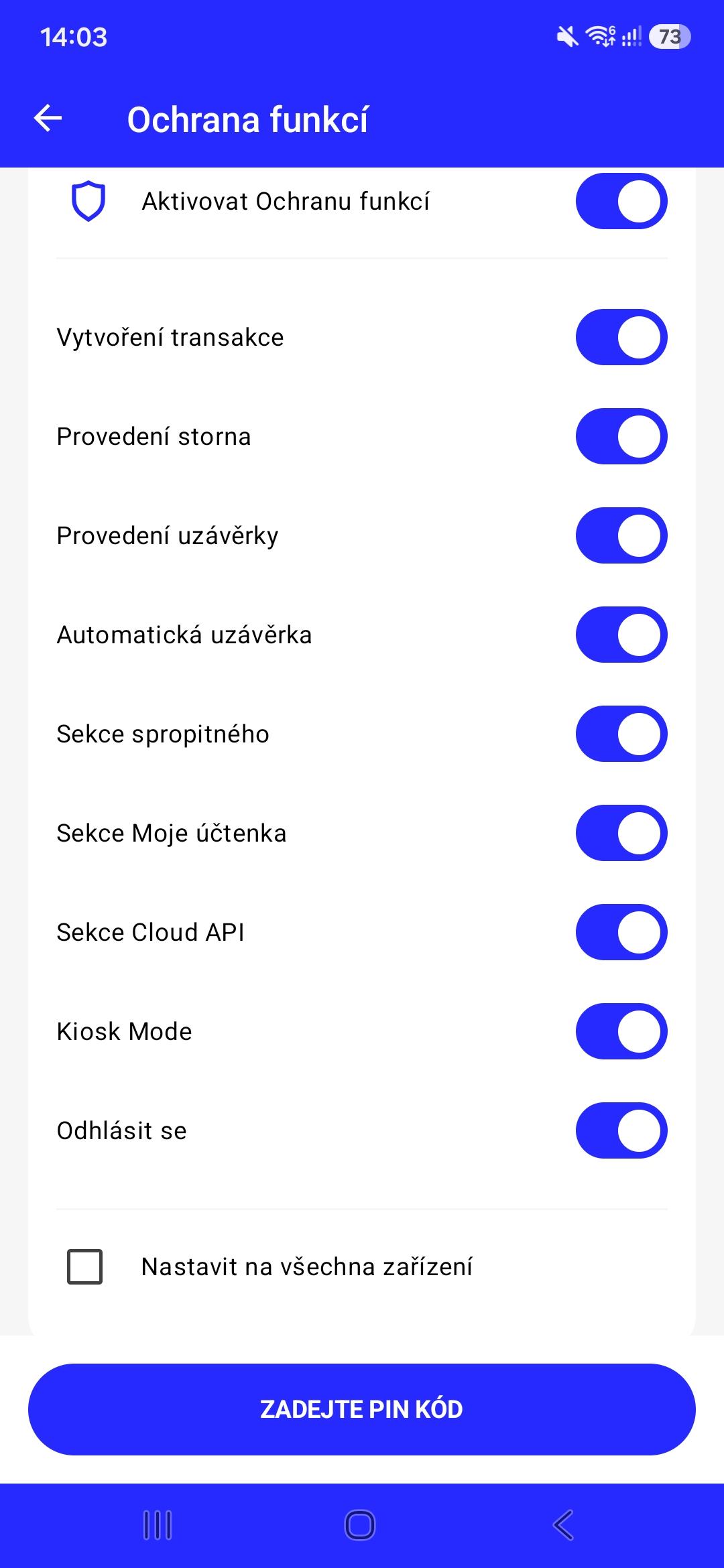
You can currently lock up to 6 functions in your Genius mobile pay terminal. If you also tick „Set for all devices“, this will apply the settings to all terminals under your location.
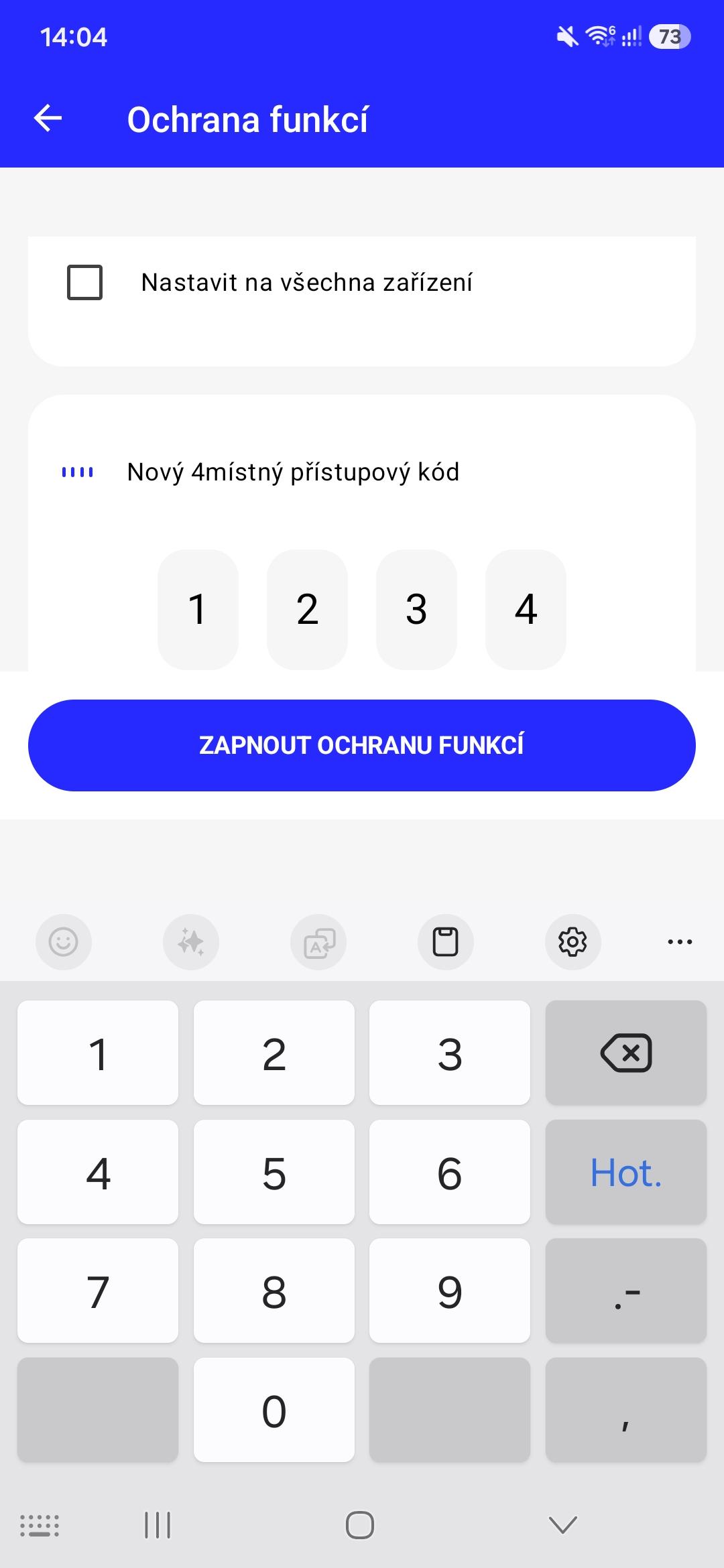
Next, click on „New 4-digit access code“ and enter the PIN you will need to verify your identity when using the locked feature. Then simply click on „SAVE AND AUTHORISE“. We recommend that you do not share your PIN with unauthorised persons.
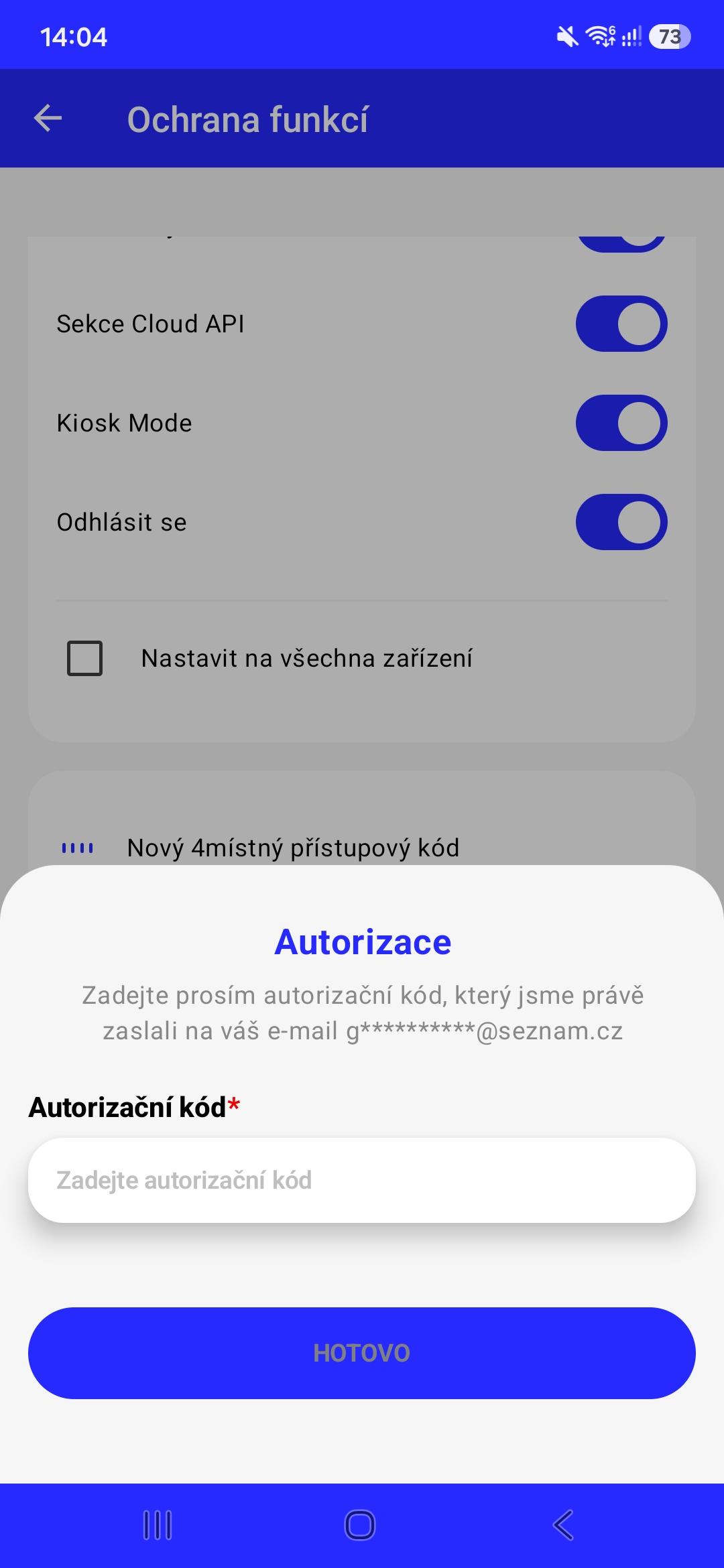
We will automatically send an authorisation code to your email address, which you will need to use to verify your identity in the app. Once you have entered the correct code, click „DONE“.
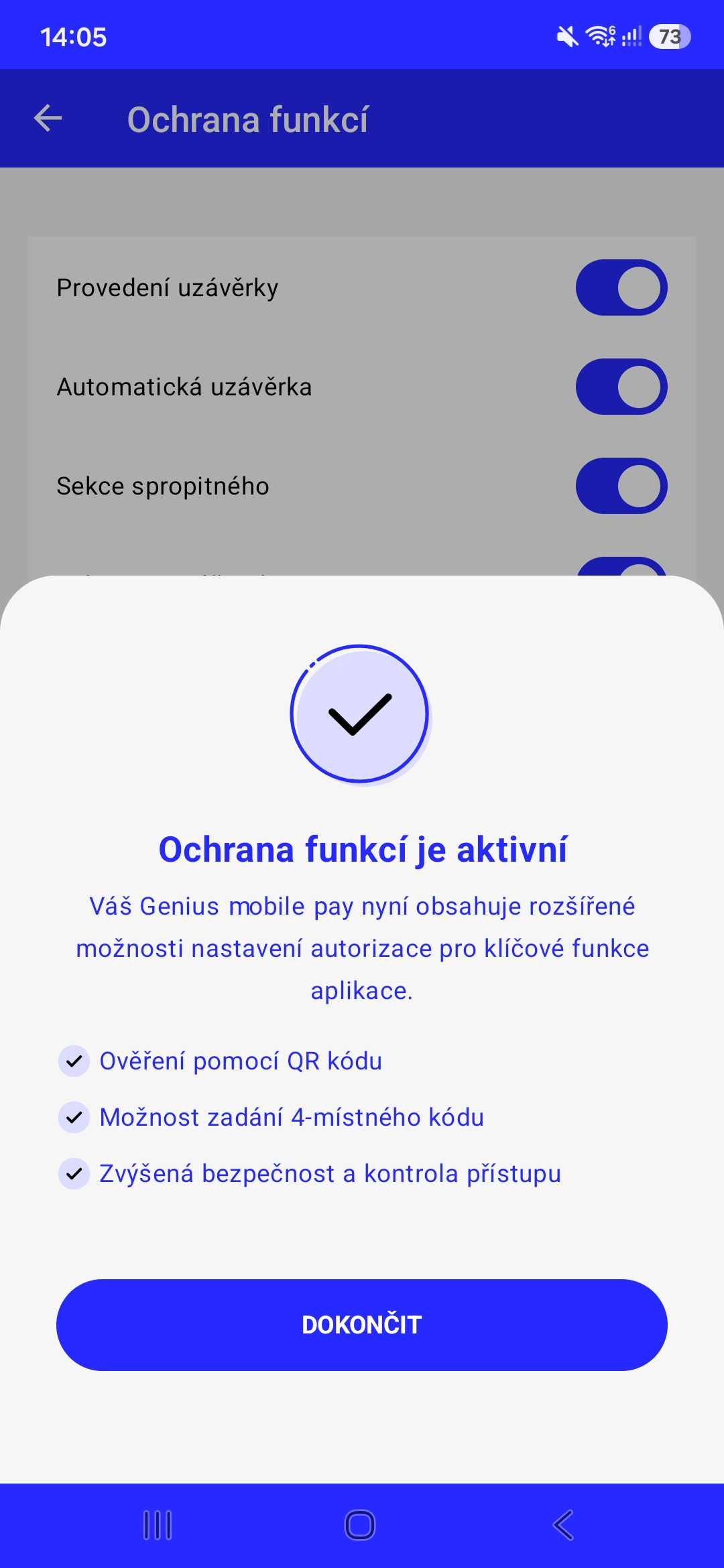
If the authorisation code has been entered correctly and the function is launched, a confirmation screen will appear.
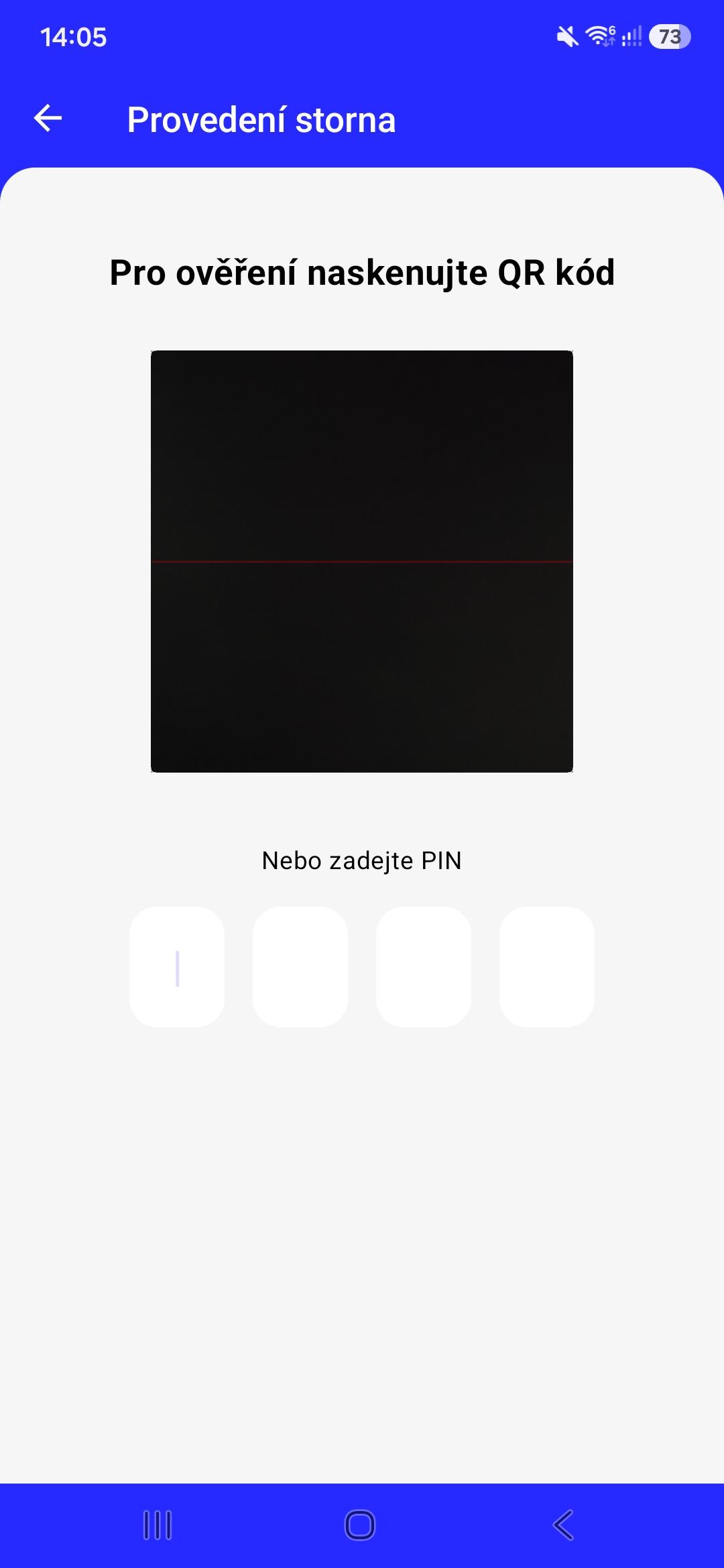
Once you have set a PIN for a particular feature, any user wishing to use that feature within the app will need to authenticate themselves using that PIN. Once you have set up feature protection, we will also send a QR code to your registered email address, which you can use to authenticate yourself instead of the PIN.
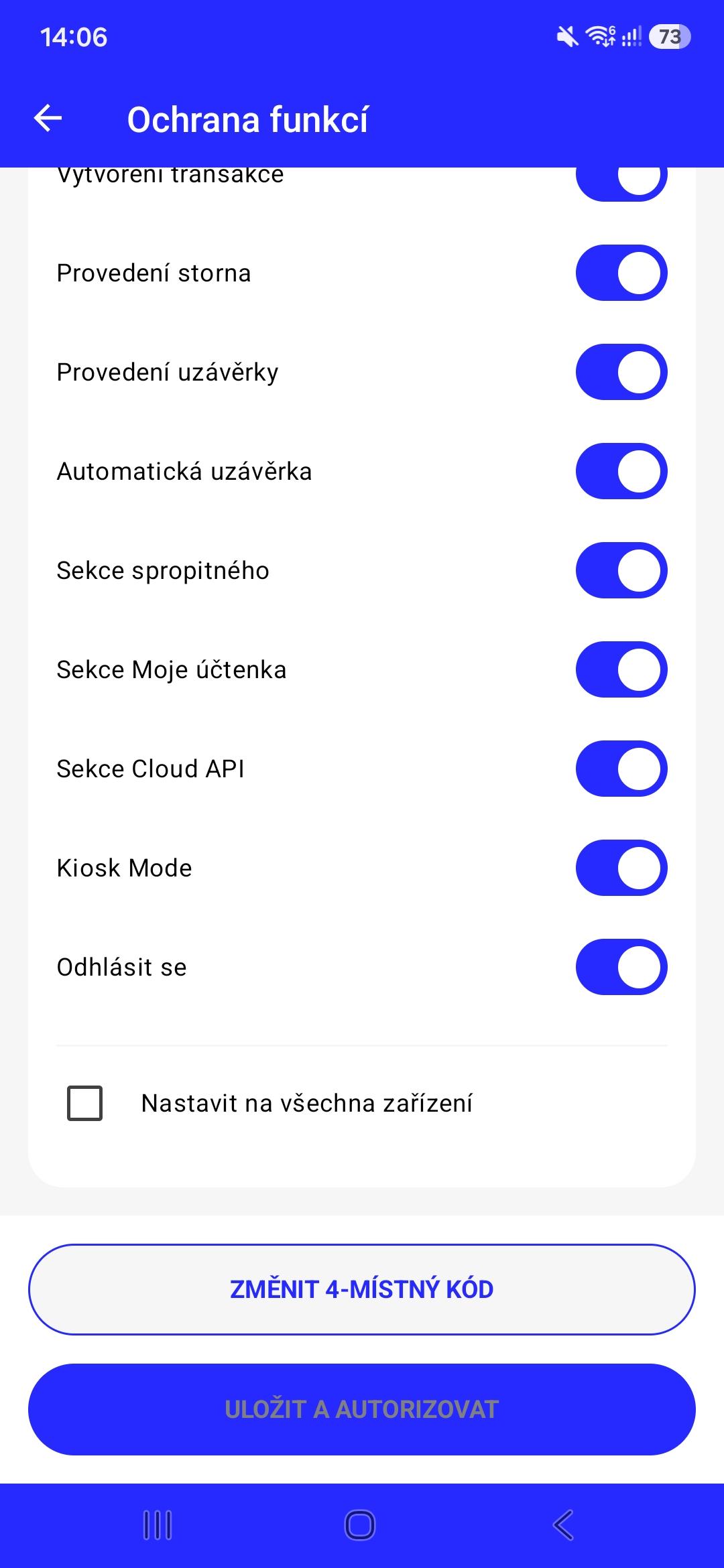
If you are not happy with the code you have chosen, you can also change it to a different one. Simply click on Change 4-digit code.
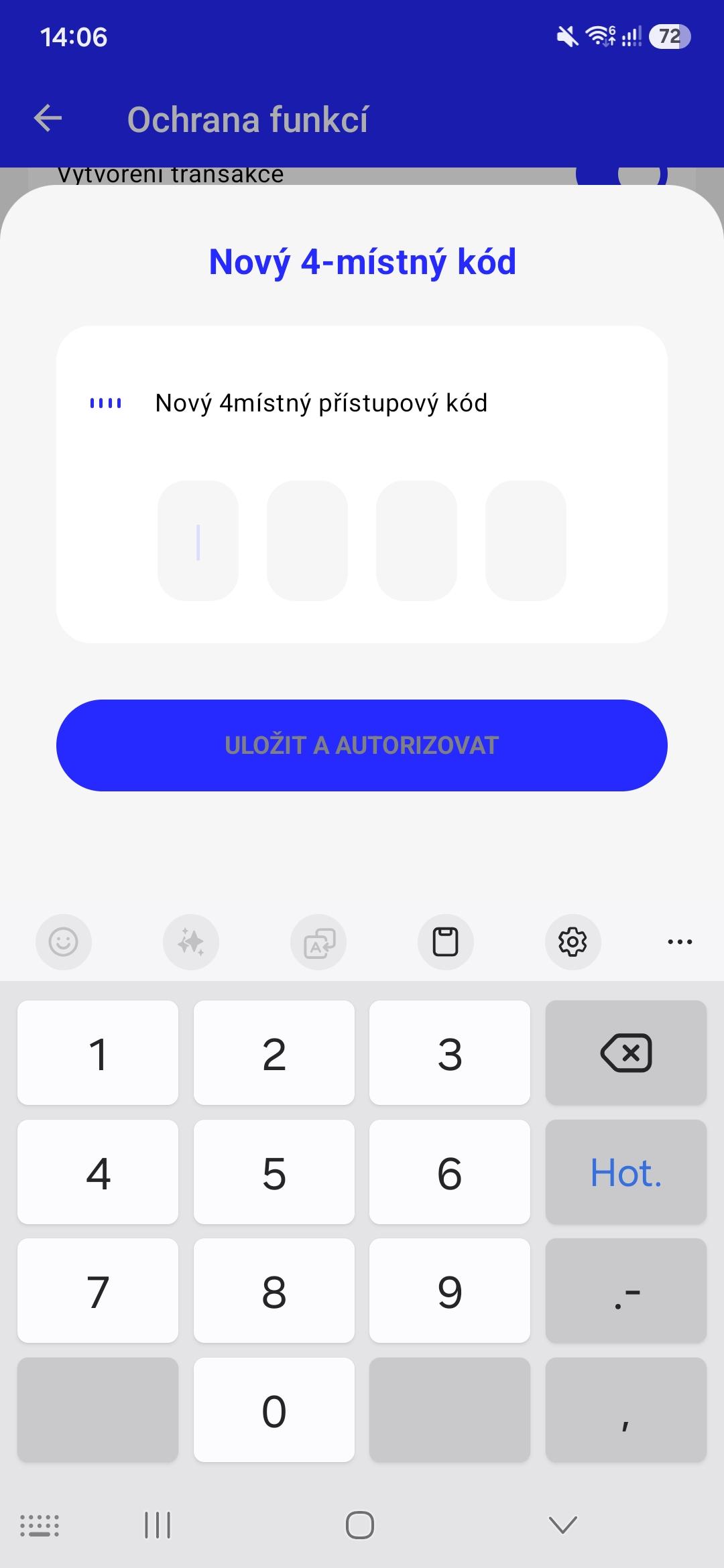
Select a new code, confirm it again using the authorisation code, and the code will be changed.
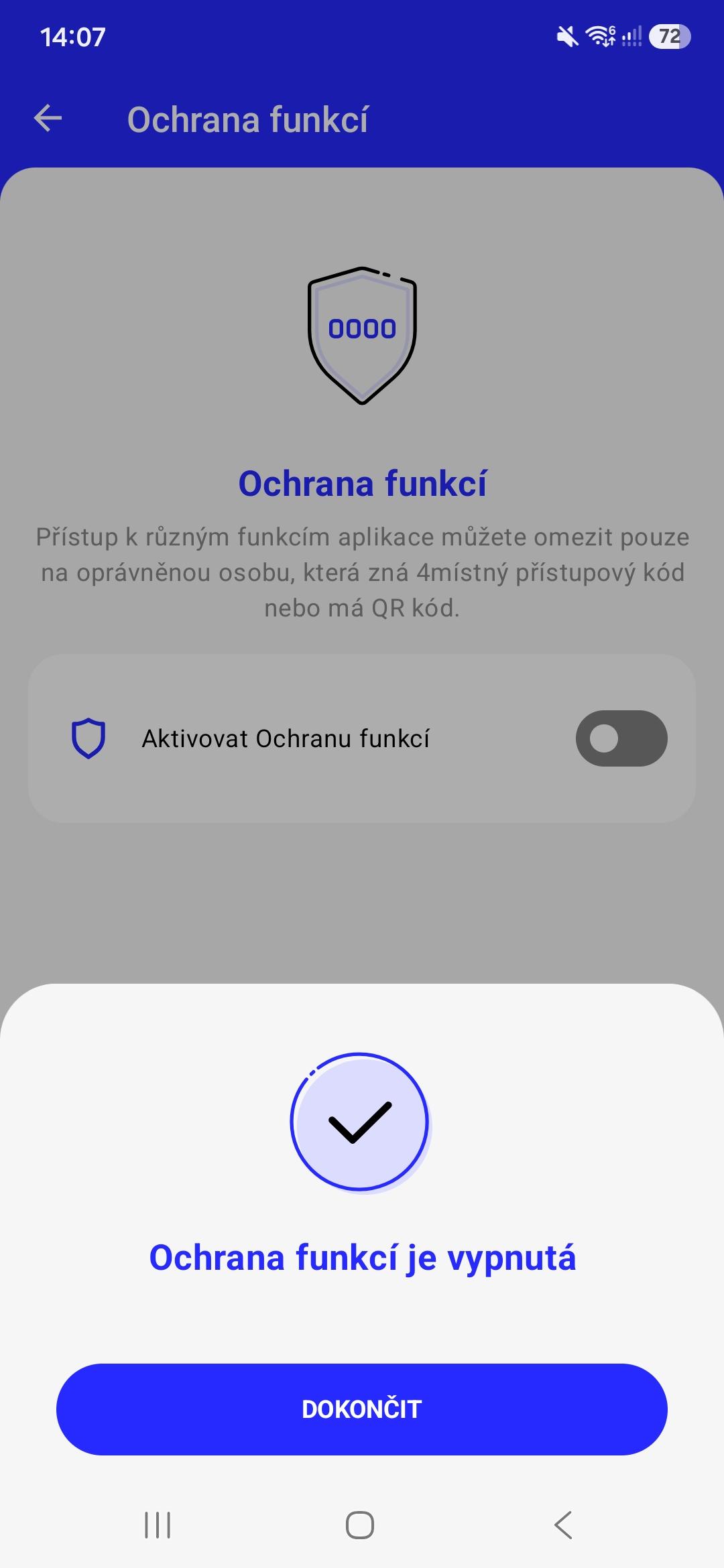
You can also disable PIN protection by simply deselecting the box next to Enable Function Protection (just as you did when you enabled it) and then click the Disable Function Protection button; you will need to confirm this again using the authorisation code in your email. Once the function has been disabled, the confirmation screen will appear again.

Changing your PIN
If you need to change the PIN code for locking functions, you can do so directly within the app. Simply go back to Function Protection, enter a new 4-digit code and click on „SAVE AND AUTHORISE“. You will then need to verify this using the authorisation code sent to your email, which will set your new PIN.
How can I use function protection?
If you activate feature protection and set a PIN code, the selected features listed below will be protected, and using them will always require entering the PIN code or scanning a QR code. You can choose which of the following features to protect:
- – Transaction creation: after entering the amount and, optionally, a tip
- – Transaction cancellation: upon clicking the "cancel transaction" button
- – Closing execution: upon clicking the “close batch” button)
- – Automatic closing: upon clicking to turn on/off or edit the date or time
- – Tip section: upon clicking the gratuity section
- – My Receipt section: upon clicking the My Receipt section
- – Cloud API section: upon clicking the Cloud API section
- – KIOSK Mode: when attempting to exit KIOSK mode
- – Log out: upon clicking “Log out” in the app